When you are uploading your Quickbooks Desktop data and the error “Application cannot be started. Contact the application vendor.” appears, please refer to the following steps provided by Validis to resolve the issue. This error is typically caused by cached app data associated with vClient. While vClient is designed to uninstall itself, issues can arise if the application has been installed or launched multiple times without a successful upload. In these cases, residual cached data from previous installations can prevent the application from starting properly. Although uncommon, this scenario may occur after repeated troubleshooting attempts or incomplete uploads.
To resolve this issue, please complete the following steps:
- Delete the cached vClient folders from the device.
- Uninstall the existing vClient application.
- Reinstall vClient and initiate a new upload.
Deleting Cached Data: Error: Application cannot be started
When launching the extraction tool (vClient), you might receive an error stating 'Application cannot be started.' This error
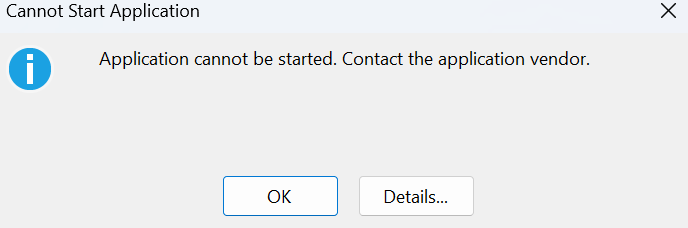
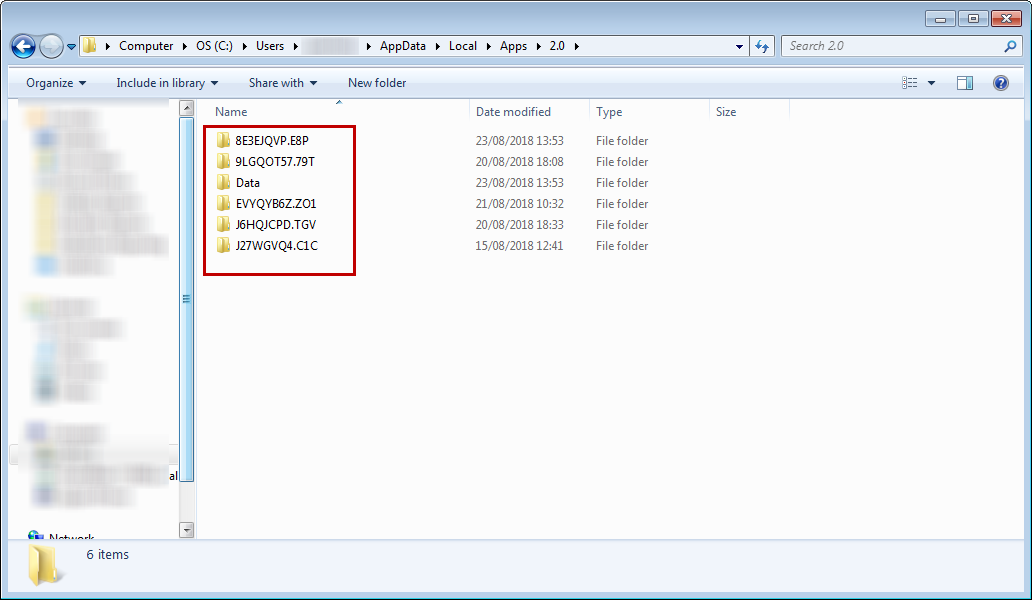
Please close the error message, then go to Windows File Explorer and navigate to:
%LocalAppData%\Apps\2.0

Inside the '2.0' folder, delete all the contents (including folders)
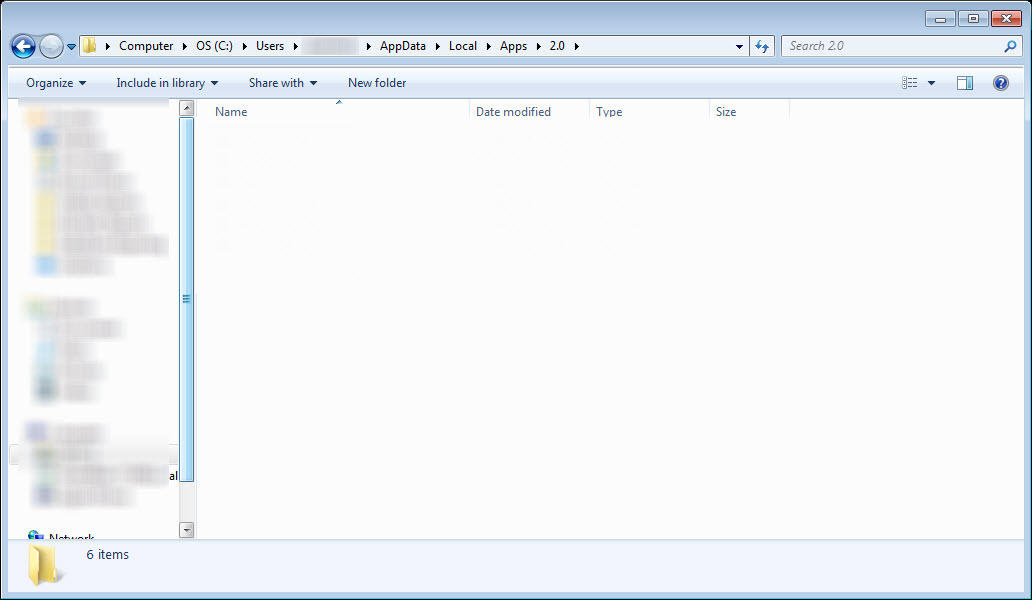
The folder should be empty as shown in the image below. Once done, please start your vClient upload again.
Uninstall Pre-Existing vClient
From the Start menu search Programs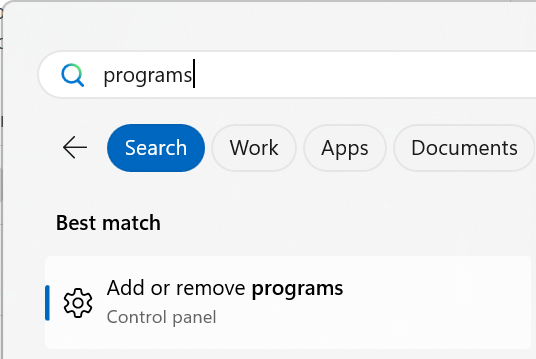
Select Add or remove programs.
In the search apps section enter vClient.
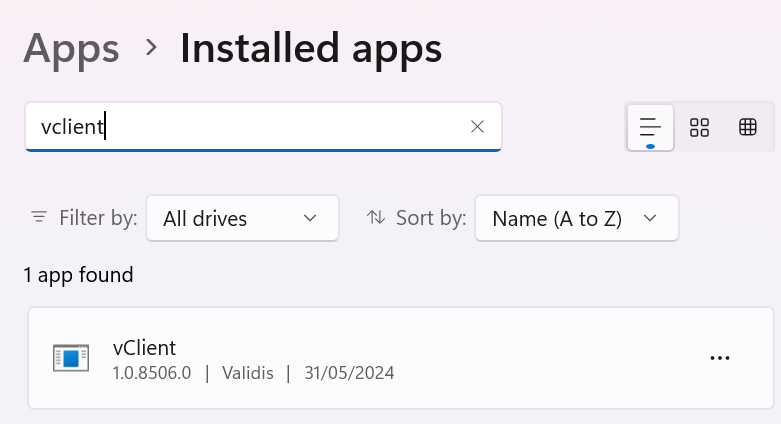
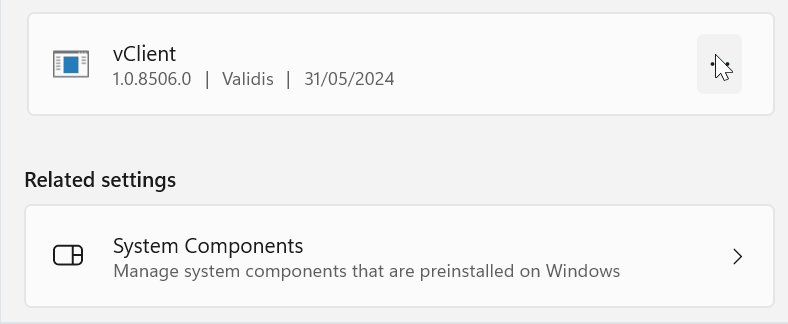
The vClient app should appear in the results. Click on the three dots and select Uninstall.
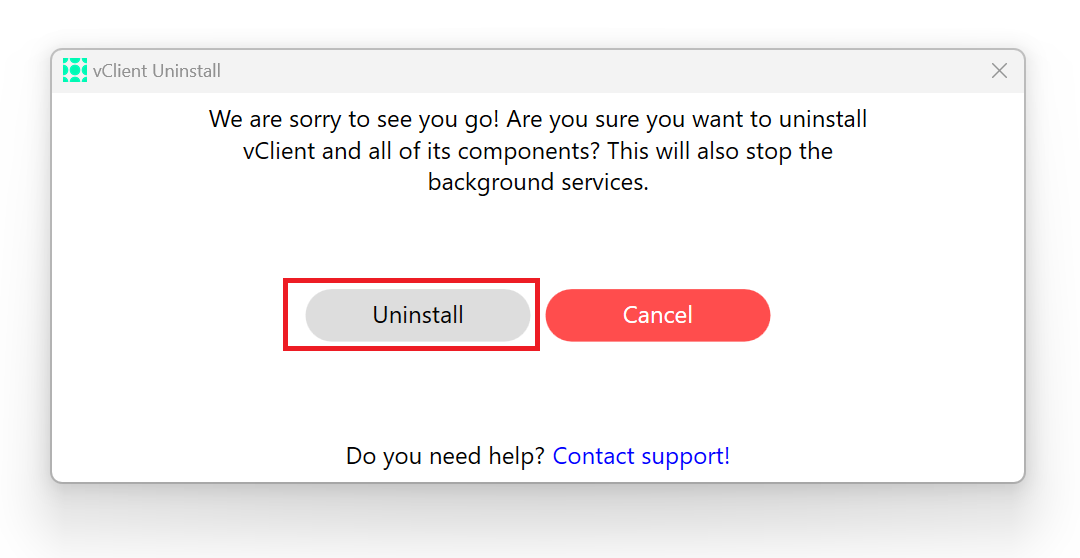
 The following dialogue box will display. Click on Uninstall.
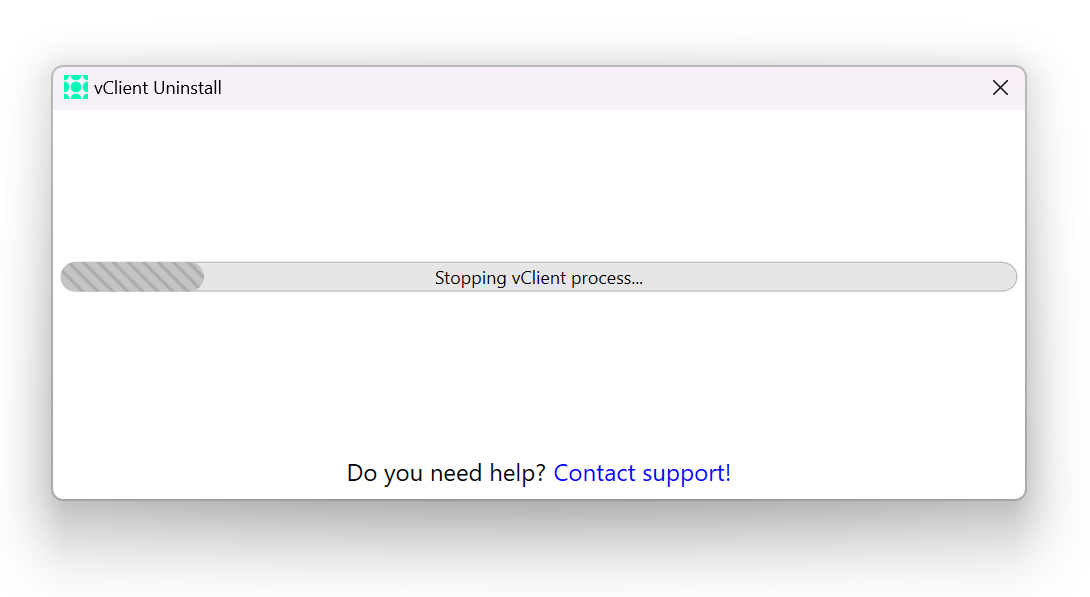
The vClient Uninstall process will begin.
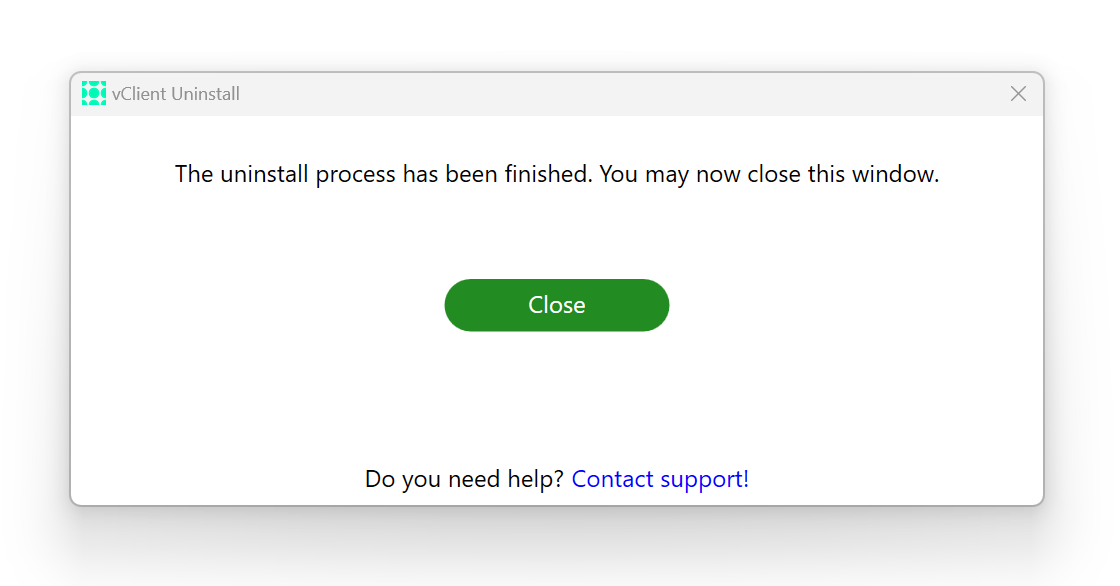
When the uninstall process has finished. You will see the below window.
If the issue persists after completing these steps, please contact support for further assistance.
Related Articles:
- Desktop Accounting Packages - Downloading and running vclient.application within Google Chrome
- Uploading Accounting Data Error: "Could not connect to Quickbooks database. Please check your username and password."
- How to upload Quickbooks Online data
Was this article helpful?
That’s Great!
Thank you for your feedback
Sorry! We couldn't be helpful
Thank you for your feedback
Feedback sent
We appreciate your effort and will try to fix the article