Upon logging in, you will see the Dashboard. The dashboard provides an overview of all information for all companies that you have access to. The words in the top colored banner of the page indicate the different pages you may navigate to: Tasks, Vendors (If applicable), Documents and Users.
All businesses you have access to will be visible in the Related Businesses container. You may need to select “show all” to view all.
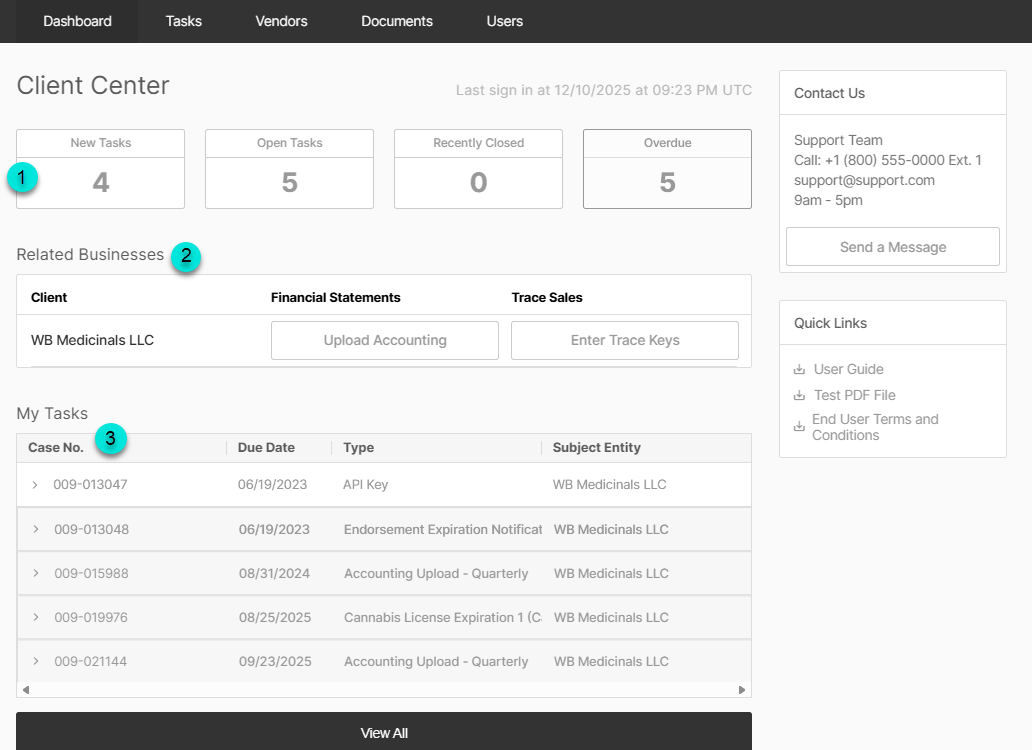
- At the top of the dashboard, four containers indicate task counts: New Tasks, Open Tasks, Recently Closed and Overdue. Overdue tasks will be indicated by red text and require your immediate attention. New Tasks indicate tasks that have been assigned to the MRB since your last login.
- In the Related Businesses container, there are quick action buttons. If there is an outstanding request for financial statements, this button will be white and you may upload them by clicking Upload Accounting. If the button is grey, there is no outstanding request and you may not upload financial data. If the "Trace Key" (API key or UBI) needs to be updated at any time, you may select “Enter Trace Keys” to enter new trace key(s).
- The Task List container displays a maximum of 10 tasks (or cases) that are assigned to you. This indicates that these items need action from you. Any overdue cases will be displayed at the top, then sorted by newest to oldest.
- The Case No. is a unique identifier number for the task.
- Due Date is the date by which your financial institution needs the information requested by the task.
- The Type column indicates the type of task needing completion.
- The Subject Entity indicates which company the task required is for.
A Case refers to a specific work item, such as an API key request, accounting upload, or cannabis license expiration. Each case is assigned a unique identifying number, which appears in the Case No. column.
The term Task is a broader, umbrella term that refers to all work items, whether they have been completed or are still pending.
Expanding the caret (on the left of the Case No.) will display a summary of the task requested. Clicking on the case number will open the entire task.
Selecting View All will display all tasks assigned to you. The View All view will also display Quick Action buttons, allowing you to complete the case in a streamlined fashion.

To display all tasks ever assigned to you from the View All Page, select the "My Tasks" dropdown and select "All Tasks"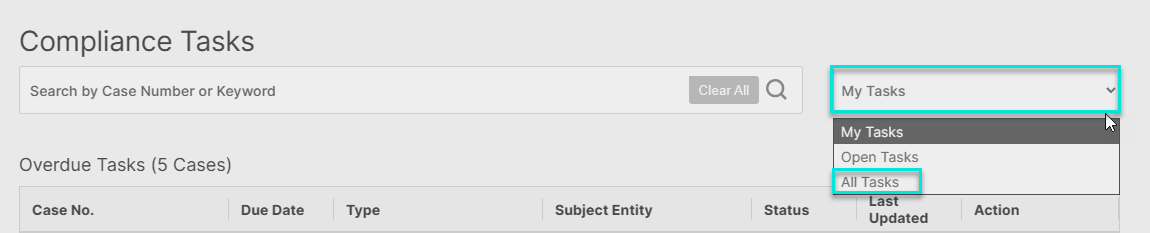
Please note, the Vendors page may or may not be visible per your financial institution's configuration.
Was this article helpful?
That’s Great!
Thank you for your feedback
Sorry! We couldn't be helpful
Thank you for your feedback
Feedback sent
We appreciate your effort and will try to fix the article